
App Store Screenshot Sizes: Complete Guide for iOS and Google Play
A clear guide to the screenshot sizes, aspect ratios, and export rules you need for App Store Connect and Google Play Console.
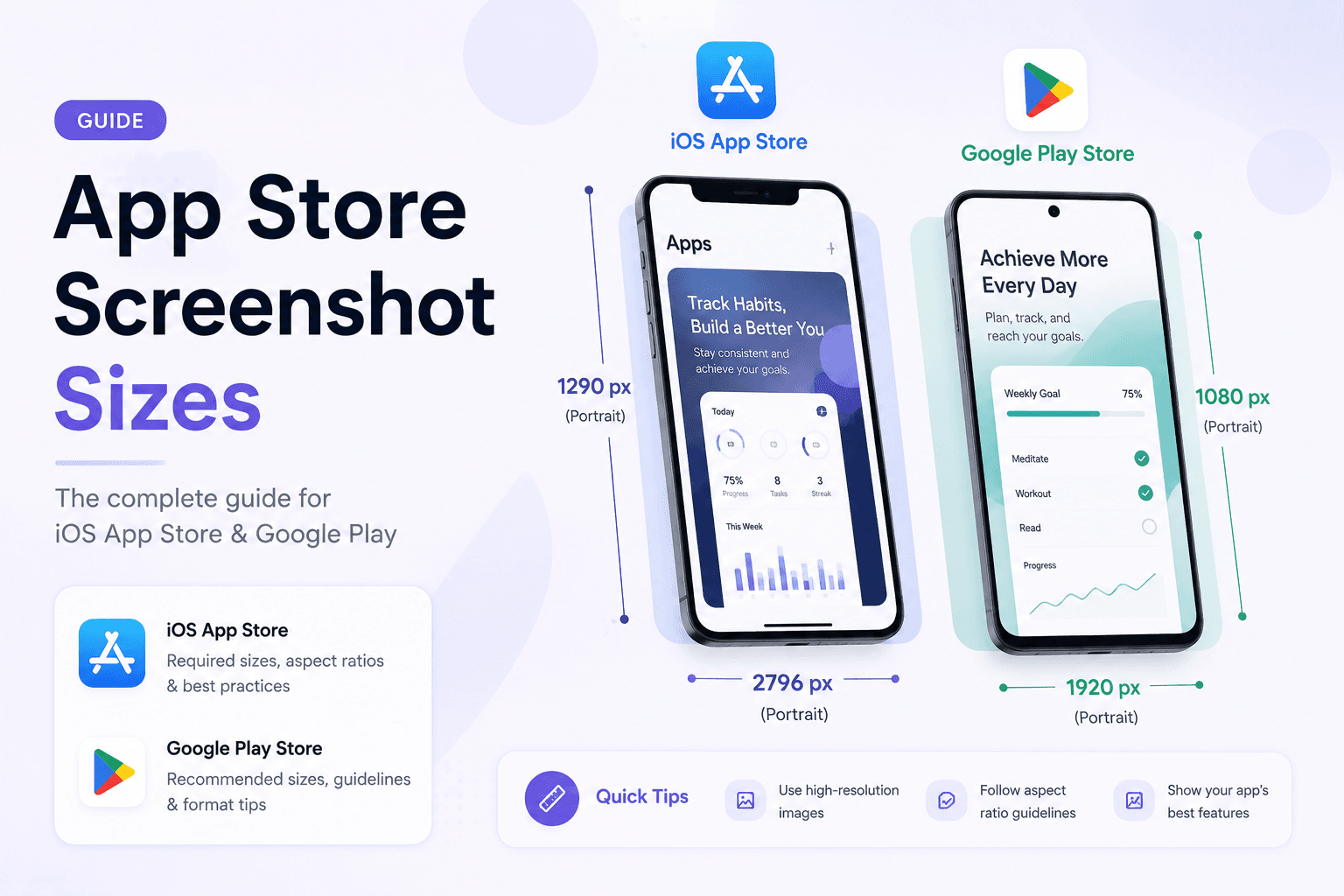
Screenshot size rules are easy to underestimate until App Store Connect or Google Play rejects an upload. The safest workflow is to design once with the final store dimensions in mind, then export clean files for each required platform.
The iOS sizes that matter most
For iPhone apps, Apple commonly expects screenshots for modern large devices. The 6.7 inch iPhone size is a key format because it represents current Pro Max style devices and appears prominently in App Store listings.
If your app supports more device families, you may also need additional iPhone and iPad sizes. The exact requirements can depend on the devices your app supports, so your export workflow should make it easy to produce multiple sizes from the same design direction.
Google Play uses flexible rules, but consistency still matters
Google Play supports a wider range of screenshot dimensions than Apple, but that flexibility can create messy listings. Use a consistent portrait or landscape ratio across the set unless your app genuinely needs mixed orientations.
A clean phone screenshot set often uses a tall portrait format, while feature graphics and promo banners require their own landscape compositions. Do not try to stretch one asset into every placement.
Avoid resizing after design
Designing at one random size and resizing later often causes blurry text, awkward crops, and misaligned device frames. Start with the output size you need, then place the screenshot and text inside that canvas.
This is especially important for caption text. A caption that looks good on a giant canvas can become unreadable after export if the scale was wrong from the start.
Plan for multiple exports
A serious launch often needs App Store screenshots, Google Play screenshots, website mockups, Product Hunt gallery images, and social preview graphics. The same source screenshots can support all of these, but each format should have its own composition.
Use reusable templates so you can swap screenshots, adjust text, and export each format without rebuilding the design from zero.
Key takeaways
- Start with the final platform size instead of resizing later.
- Use consistent aspect ratios across each store listing.
- Create separate compositions for phone screenshots and banners.
- Keep text readable at the final exported size.
- Use templates to generate multiple store sizes faster.
Build faster
Create your next screenshot set in Screenza.
Use a template, replace the screens, edit the copy, and export polished App Store or Google Play screenshots without a design file.