
App Store Screenshot Size Guide (2026): All iPhone & iPad Dimensions
A complete 2026 reference for App Store screenshot dimensions, required device sets, and export workflow for iPhone and iPad apps.
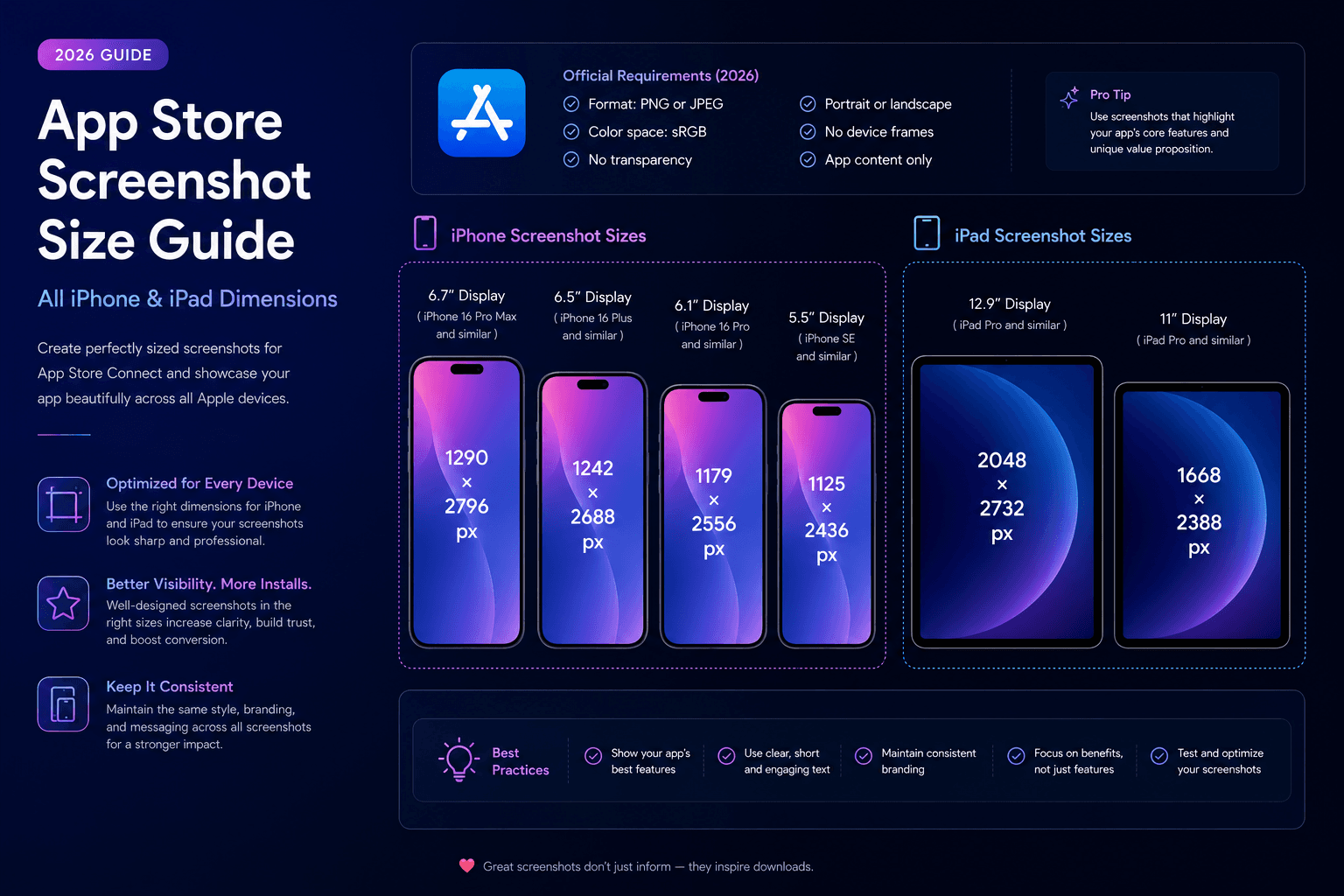
If your screenshot sizes are wrong, your launch gets blocked. This guide gives you a practical, current workflow for preparing iPhone and iPad screenshots correctly the first time.
Which App Store screenshot sizes matter most in 2026
Most teams should start with current large iPhone sizes first, because those placements are the most visible for many listings.
If your app supports iPad, include iPad-specific screenshots instead of resizing iPhone visuals. iPad buyers expect layout fidelity and larger UI context.
Plan your screenshot set before export
Create a fixed sequence for each set: core promise, key workflow, standout feature, trust signal, and final CTA.
Use the same visual system across all screenshots so the gallery looks intentional and premium.
Avoid common size-related rejection mistakes
Do not design at random canvas sizes and resize at the end. This often breaks typography and frame alignment.
Export directly at target dimensions for each device family and verify legibility at final size.
A practical production workflow with Screenza
Build one master narrative and duplicate it across required iPhone and iPad dimensions instead of redesigning each card from zero.
With Screenza, you can keep messaging, frame treatment, and spacing consistent while exporting multiple store-ready sizes quickly from one workflow.
Key takeaways
- Start with required iPhone sizes, then add iPad if supported.
- Design per target dimension, not one-size resize.
- Keep sequencing and style consistent across the gallery.
- Validate readability at final export dimensions.
Build faster
Create your next screenshot set in Screenza.
Use a template, replace the screens, edit the copy, and export polished App Store or Google Play screenshots without a design file.